Prescripción MiMedico Grupo Quirón
In this video, I'm going to explain how the prescription the prescription and dispensing tool for and dispensing tool for non-medicated health products works. non-medicated health products works. To prescribe in the midoctor.com app, To prescribe in
Tutorial MiMedico.com
Guía práctica generada a partir del vídeo tutorial de MiMedico.com.
Resumen
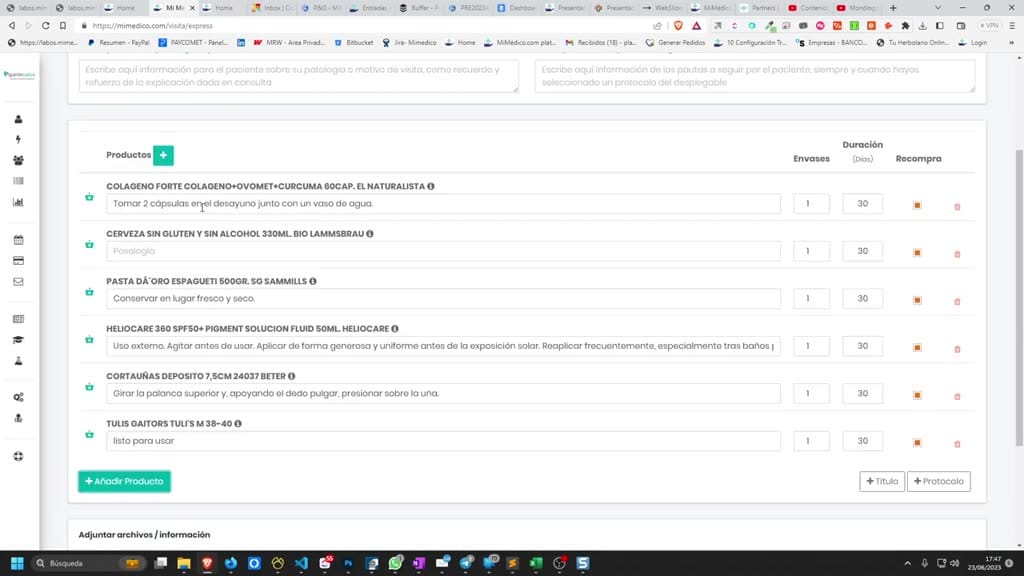
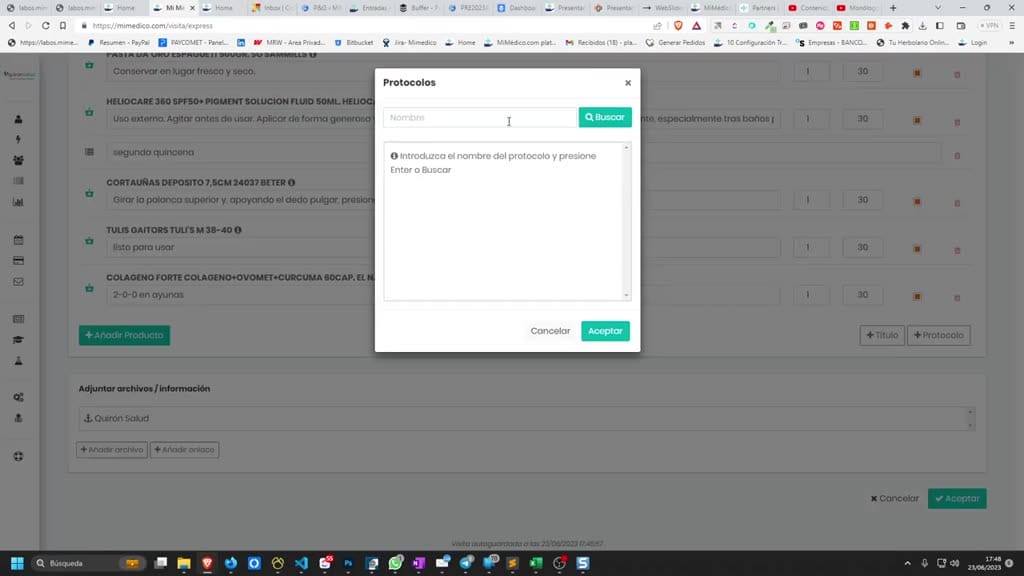
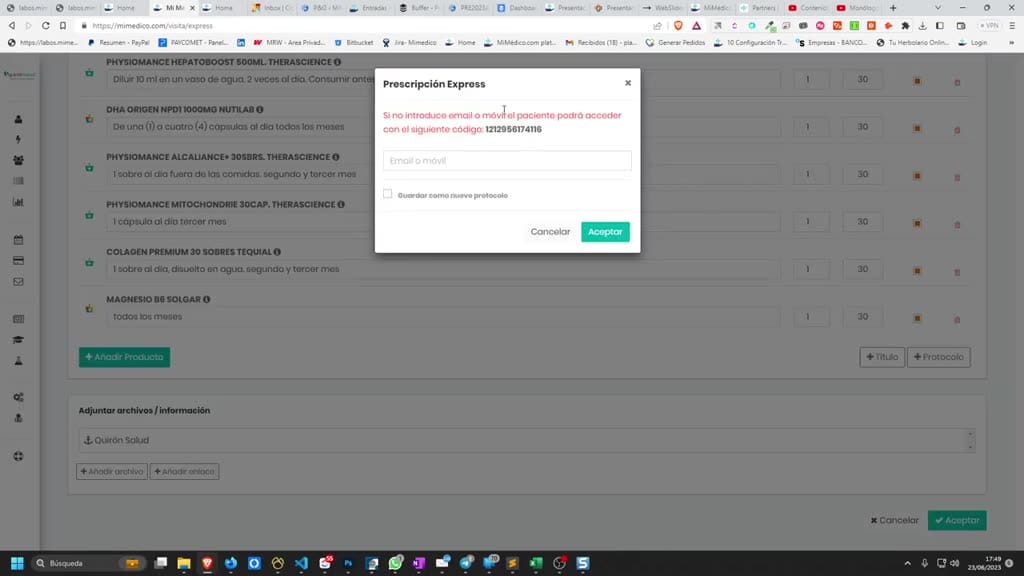
In this video, I'm going to explain how the prescription the prescription and dispensing tool for and dispensing tool for non-medicated health products works. non-medicated health products works. To prescribe in the midoctor.com app, To prescribe in the midoctor.com app, we'll have a we'll have a formulary of 90,000 references. formulary of 90,000 references. To add any reference to the To add any reference to the prescription we're writing for prescription we're writing for our patient, we can use our patient, we can use Express Prescription, which is an Express Prescription, which is an anonymous prescription. We simply have to click " anonymous prescription. We simply have to click " Add product" or "here," and Add product" or "here," and the product search engine will open. Here, the product search engine will open.
Pasos del tutorial
1. Paso 1
- In this video, I'm going to explain how the prescription the prescription and dispensing tool for and dispensing tool for non-medicated health products works. non-medicated health products works. To prescribe in the midoctor.com app,
2. Paso 2
- To prescribe in the midoctor.com app, we'll have a we'll have a formulary of 90,000 references. formulary of 90,000 references. To add any reference to the To add any reference to the prescription we're writing for
3. Paso 3
- prescription we're writing for our patient, we can use our patient, we can use Express Prescription, which is an Express Prescription, which is an anonymous prescription. We simply have to click "
4. Paso 4
- anonymous prescription. We simply have to click " Add product" or "here," and Add product" or "here," and the product search engine will open. Here, the product search engine will open. Here, we can search by brand name or
5. Paso 5
- we can search by brand name or by laboratory name, and by laboratory name, and we'll find everything in the we'll find everything in the supplement range. If I type "collagen," it will show all the collagens we have. Okay, if I want to prescribe this
6. Paso 6
- have. Okay, if I want to prescribe this specific collagen, we simply have to specific collagen, we simply have to click on it, and it click on it, and it will be selected and added to the recommendation.
7. Paso 7
- will be selected and added to the recommendation. We'll also find everything in the We'll also find everything in the sports nutrition range, all the sports nutrition range, all the diet and nutrition products. If I
8. Paso 8
- diet and nutrition products. If I type "gluten-free," type "gluten-free," after showing all the after showing all the gluten-free products we have, from beers to gluten-free products we have, from beers to pasta—let's say pasta—let's say
9. Paso 9
- spaghetti—we'll also find everything in dermocosmetics. find everything in dermocosmetics. Heliocare Heliocare 360 will show me the 360 will show me the Heliocare Disney range. Okay, so I can choose
10. Paso 10
- Heliocare Disney range. Okay, so I can choose any of them. We also have the whole range of body, hair, and oral hygiene products. If I body, hair, and oral hygiene products. If I put, say, nail clippers, it will
Preguntas frecuentes para soporte
¿Qué explica el tutorial Prescripción MiMedico Grupo Quirón?
In this video, I'm going to explain how the prescription the prescription and dispensing tool for and dispensing tool for non-medicated health products works. non-medicated health products works. To prescribe in the midoctor.com app, To prescribe in the midoctor.com app, we'll have a we'll have a formulary of 90,000 references. formulary of 90,000 references. To add any reference to the To add any reference to the prescription we're writing for prescription we're writing for our patient, we can use our patient, we can use Express Prescription, which is an Express Prescription, which is an anonymous prescription. We simply have to click " anonymous prescription. We simply have to click " Add product" or "here," and Add product" or "here," and the product search engine will open. Here, the product search engine will open.
¿Dónde está el material fuente del tutorial?
El paquete local está en /mnt/d/Claude/claude-config/trabajos/MiMedico/Tutoriales/Prescripción MiMedico Grupo Quirón y el vídeo fuente es https://www.youtube.com/watch?v=JypWAkkVFgE.
¿Para qué se usa esta fuente en soporte?
Se usa para responder dudas operativas sobre la funcionalidad de MiMedico.com mostrada en el vídeo.
Fuente: vídeo tutorial MiMedico. Material generado automáticamente por Morfeo y sincronizado con la biblioteca Tutoriales MiMedico.com.