
Fusionar Pacientes en MiMédico.com
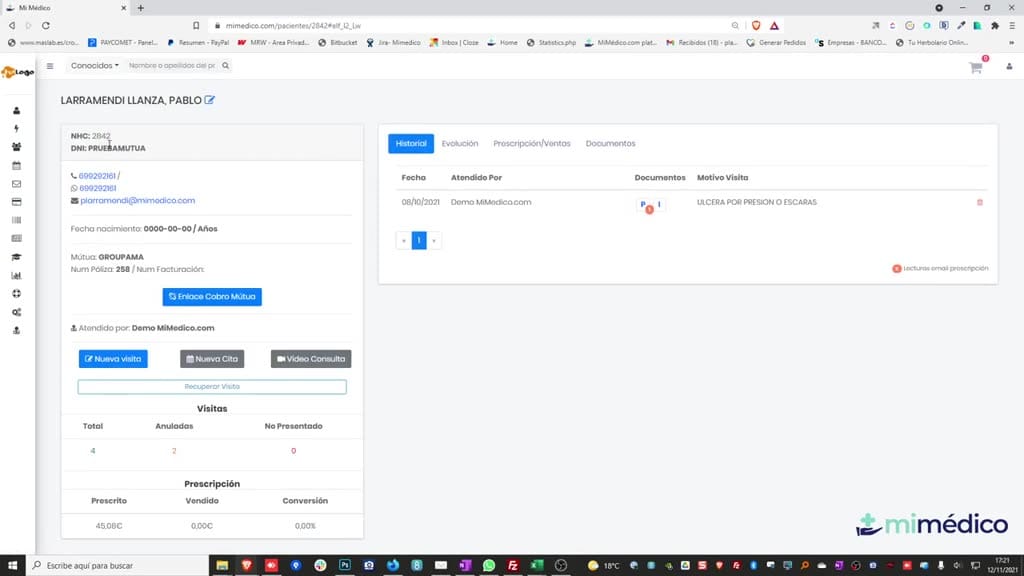
My doctor allows us to merge patients to avoid merge patients to avoid duplicates in our database. duplicates in our database. Here's an example of a Here's an example of a patient with duplicates. If we look patient with duplicates.
Tutorial MiMedico.com
Guía práctica generada a partir del vídeo tutorial de MiMedico.com.
Resumen
My doctor allows us to merge patients to avoid merge patients to avoid duplicates in our database. duplicates in our database. Here's an example of a Here's an example of a patient with duplicates. If we look patient with duplicates. If we look at this patient's record, we see they at this patient's record, we see they have the correct ID number and have the correct ID number and many visits. If we look at this patient's many visits. If we look at this patient's record, we see they don't have the correct ID number, so we want to delete this one. To merge two patients, we focus on the correct one and click "edit." on the correct one and click "edit." Once we're on the Once we're on the edit screen, there's an option in the bottom edit screen, there's an option in the bottom left that says "merge." We left that says "merge." We click it, and where it says "enter click it, and where it says "enter patient name," we enter patient name," we enter the name of the patient to be merged.
Pasos del tutorial
1. Paso 1
- My doctor allows us to merge patients to avoid merge patients to avoid duplicates in our database. duplicates in our database. Here's an example of a Here's an example of a patient with duplicates. If we look
2. Paso 2
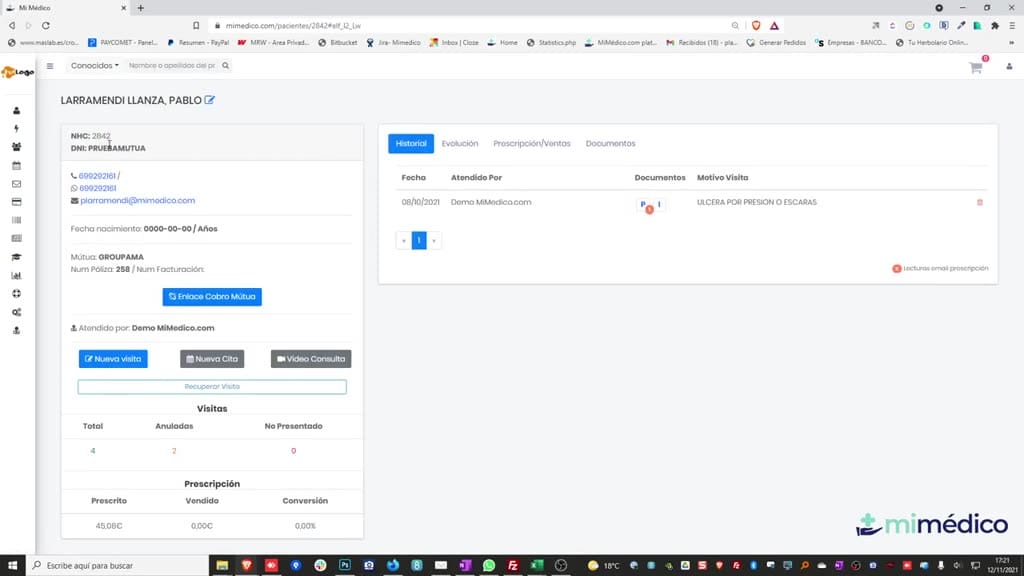
- patient with duplicates. If we look at this patient's record, we see they at this patient's record, we see they have the correct ID number and have the correct ID number and many visits. If we look at this patient's many visits. If we look at this patient's
3. Paso 3
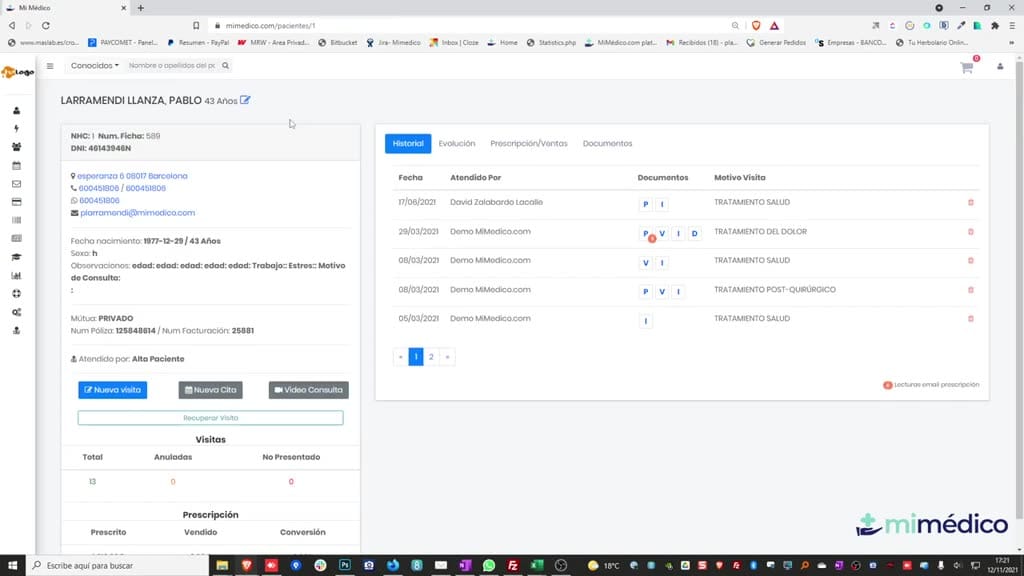
- record, we see they don't have the correct ID number, so we want to delete this one. To merge two patients, we focus on the correct one and click "edit." on the correct one and click "edit." Once we're on the
4. Paso 4
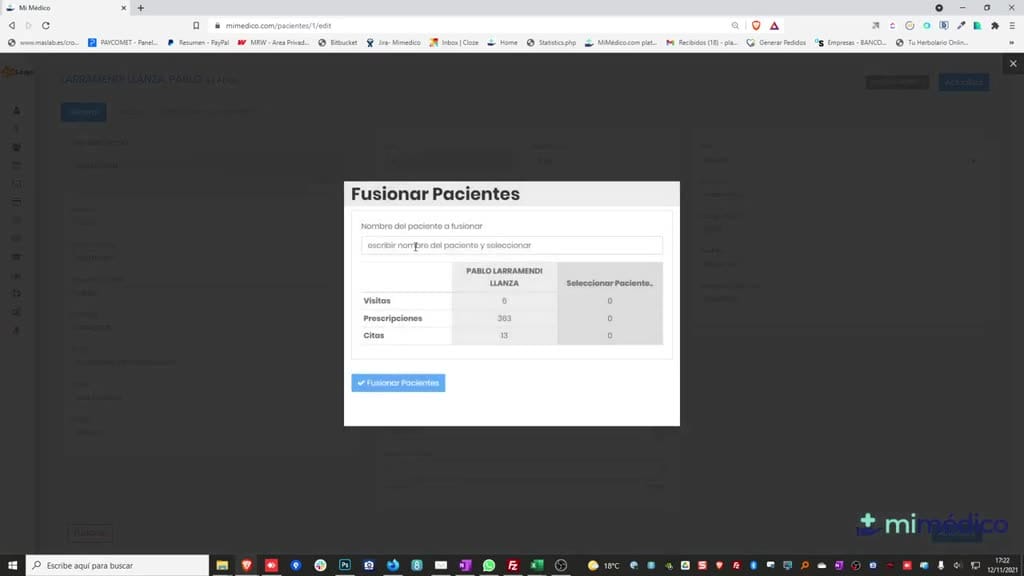
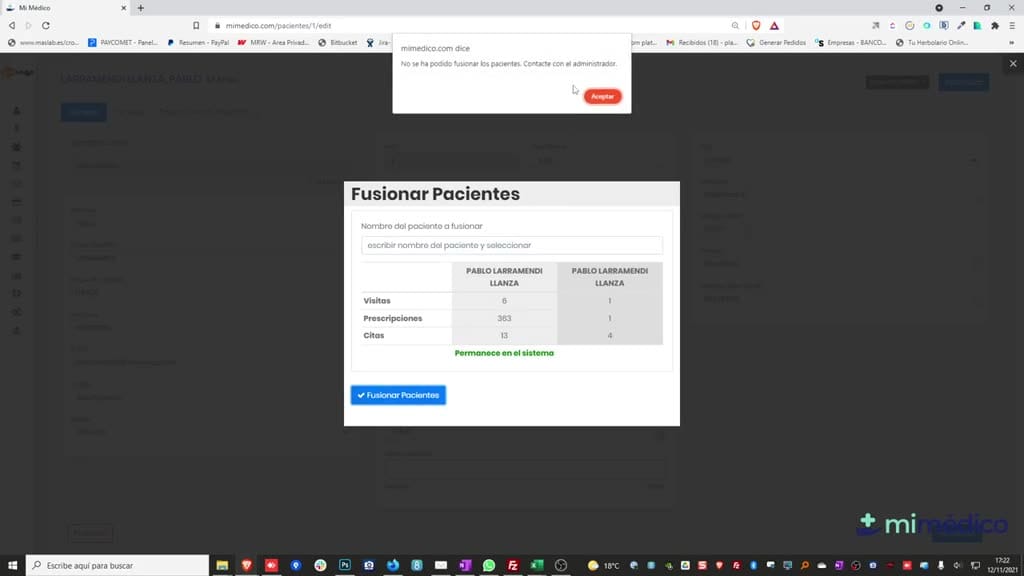
- Once we're on the edit screen, there's an option in the bottom edit screen, there's an option in the bottom left that says "merge." We left that says "merge." We click it, and where it says "enter click it, and where it says "enter patient name," we enter
5. Paso 5
- patient name," we enter the name of the patient to be merged. It will the name of the patient to be merged. It will tell us which of the two will remain in the tell us which of the two will remain in the system and that it will merge their appointments,
6. Paso 6
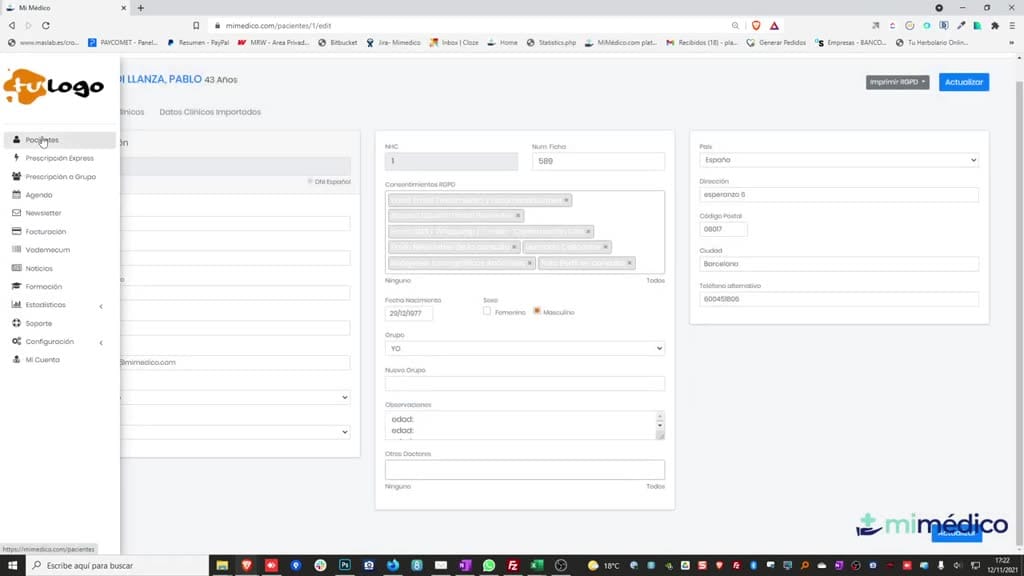
- system and that it will merge their appointments, prescriptions, and visits. We click " prescriptions, and visits. We click " merge patients" and then " merge patients" and then " accept." Now, if I search the patient list for " Paulo Paulo Larramendi,"
7. Paso 7
- only one will appear. If I click on it, we'll see that we'll see that all the information has been merged.
Preguntas frecuentes para soporte
¿Qué explica el tutorial Fusionar Pacientes en MiMédico.com?
My doctor allows us to merge patients to avoid merge patients to avoid duplicates in our database. duplicates in our database. Here's an example of a Here's an example of a patient with duplicates. If we look patient with duplicates. If we look at this patient's record, we see they at this patient's record, we see they have the correct ID number and have the correct ID number and many visits. If we look at this patient's many visits. If we look at this patient's record, we see they don't have the correct ID number, so we want to delete this one. To merge two patients, we focus on the correct one and click "edit." on the correct one and click "edit." Once we're on the Once we're on the edit screen, there's an option in the bottom edit screen, there's an option in the bottom left that says "merge." We left that says "merge." We click it, and where it says "enter click it, and where it says "enter patient name," we enter patient name," we enter the name of the patient to be merged.
¿Dónde está el material fuente del tutorial?
El paquete local está en /mnt/d/Claude/claude-config/trabajos/MiMedico/Tutoriales/Fusionar Pacientes en MiMédico.com y el vídeo fuente es https://www.youtube.com/watch?v=Q8hvaNdIB_I.
¿Para qué se usa esta fuente en soporte?
Se usa para responder dudas operativas sobre la funcionalidad de MiMedico.com mostrada en el vídeo.
Fuente: vídeo tutorial MiMedico. Material generado automáticamente por Morfeo y sincronizado con la biblioteca Tutoriales MiMedico.com.