Formación MiMedico Jhon Renee Soledispa
We're recording now, okay? Okay, so in the patient list, you in the patient list, you can search can search by first or by first or last name. Okay, and by clicking on last name. Okay, and by clicking on the name, I'll go into the patient's the name,
Tutorial MiMedico.com
Guía práctica generada a partir del vídeo tutorial de MiMedico.com.
Resumen
We're recording now, okay? Okay, so in the patient list, you in the patient list, you can search can search by first or by first or last name. Okay, and by clicking on last name. Okay, and by clicking on the name, I'll go into the patient's the name, I'll go into the patient's record. Okay, the patient's record record. Okay, the patient's record has the patient's contact information on the left: the has the patient's contact information on the left: the medical record number, the ID number (I've given you a fictitious ID), your email address, given you a fictitious ID), your email address, your contact information, date of your contact information, date of birth, etc., etc. And the birth, etc., etc. And the action buttons—that is, what can I action buttons—that is, what can I do with a registered patient? do with a registered patient?
Pasos del tutorial
1. Paso 1
- We're recording now, okay? Okay, so in the patient list, you in the patient list, you can search can search by first or by first or last name. Okay, and by clicking on last name. Okay, and by clicking on the name, I'll go into the patient's
2. Paso 2
- the name, I'll go into the patient's record. Okay, the patient's record record. Okay, the patient's record has the patient's contact information on the left: the has the patient's contact information on the left: the
3. Paso 3
- medical record number, the ID number (I've given you a fictitious ID), your email address, given you a fictitious ID), your email address, your contact information, date of your contact information, date of birth, etc., etc. And the
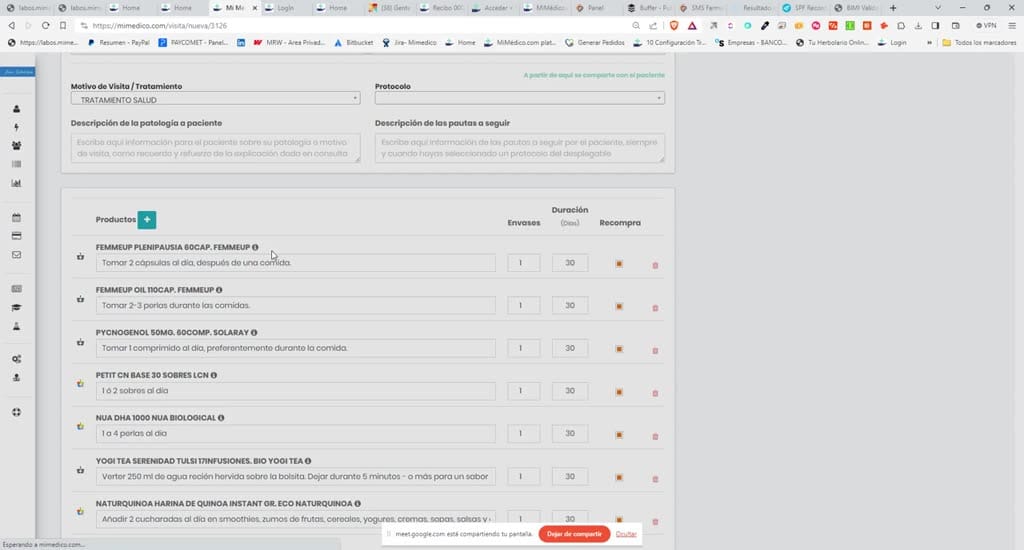
4. Paso 4
- birth, etc., etc. And the action buttons—that is, what can I action buttons—that is, what can I do with a registered patient? do with a registered patient? You have three options: You have three options: New Visit, because you have them in front of you or
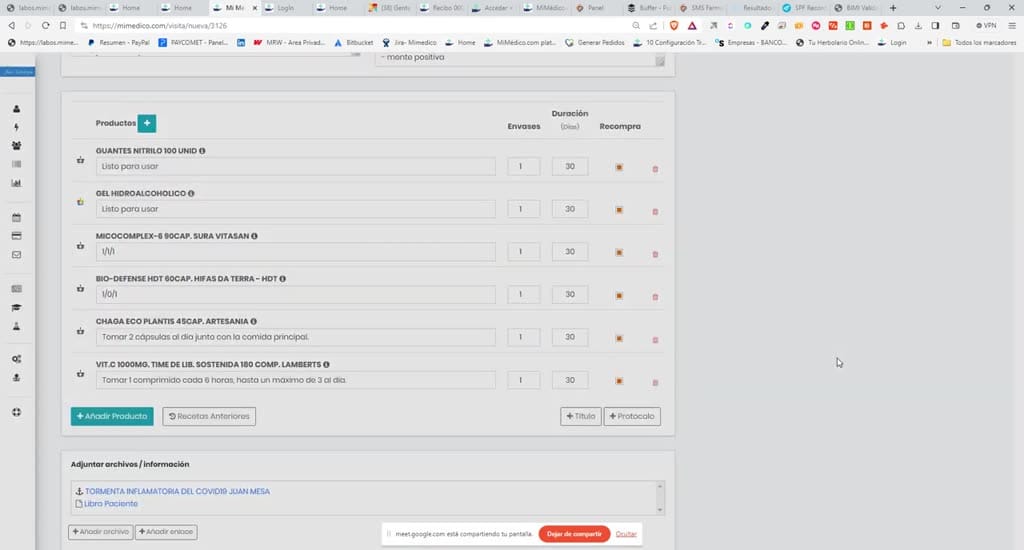
5. Paso 5
- New Visit, because you have them in front of you or online, and you're going to visit them, okay? You're going to schedule a online, and you're going to visit them, okay? You're going to schedule a visit, or you can schedule an
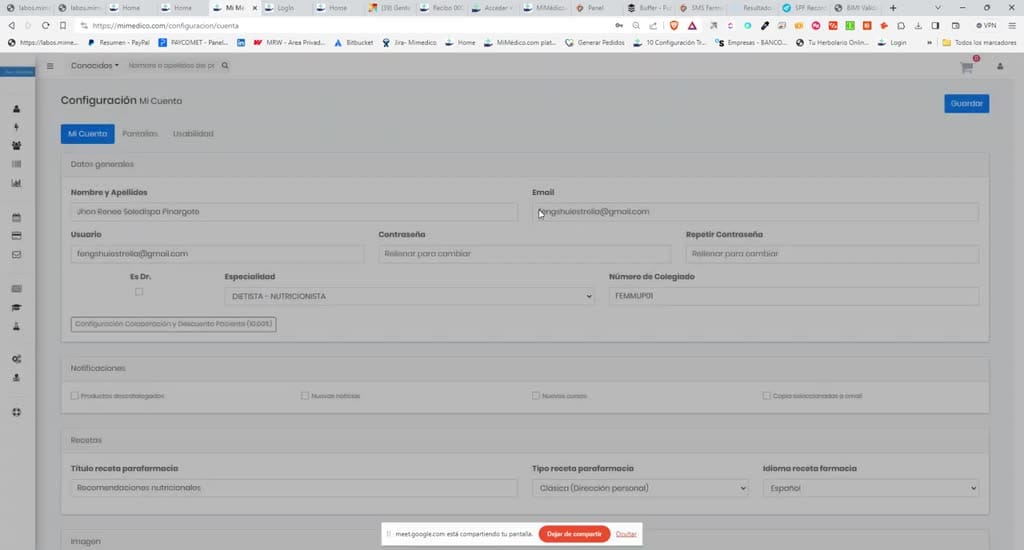
6. Paso 6
- visit, or you can schedule an appointment in the calendar with "New Appointment," or you appointment in the calendar with "New Appointment," or you can schedule a video consultation. Okay.
7. Paso 7
- can schedule a video consultation. Okay. These are the three things you can These are the three things you can do with a patient. Oh, okay, you can do with a patient. Oh, okay, you can link directly with [unclear - possibly "Ne" or "
8. Paso 8
- link directly with [unclear - possibly "Ne" or " Zoom"]. The Zoom"]. The video consultation is within video consultation is within our platform. Then, then... Oh, okay, our platform. Then, then... Oh, okay, perfect. Then you have a
9. Paso 9
- perfect. Then you have a summary of the patient's history in your summary of the patient's history in your practice, that is, how many visits they've practice, that is, how many visits they've had in total. How many times have you
10. Paso 10
- had in total. How many times have you cancelled? How many times have you missed appointments? cancelled? How many times have you missed appointments? And regarding prescriptions: Hey, I gave you
Preguntas frecuentes para soporte
¿Qué explica el tutorial Formación MiMedico Jhon Renee Soledispa?
We're recording now, okay? Okay, so in the patient list, you in the patient list, you can search can search by first or by first or last name. Okay, and by clicking on last name. Okay, and by clicking on the name, I'll go into the patient's the name, I'll go into the patient's record. Okay, the patient's record record. Okay, the patient's record has the patient's contact information on the left: the has the patient's contact information on the left: the medical record number, the ID number (I've given you a fictitious ID), your email address, given you a fictitious ID), your email address, your contact information, date of your contact information, date of birth, etc., etc. And the birth, etc., etc. And the action buttons—that is, what can I action buttons—that is, what can I do with a registered patient? do with a registered patient?
¿Dónde está el material fuente del tutorial?
El paquete local está en /mnt/d/Claude/claude-config/trabajos/MiMedico/Tutoriales/Formación MiMedico Jhon Renee Soledispa y el vídeo fuente es https://www.youtube.com/watch?v=XQ_bxPDRBlw.
¿Para qué se usa esta fuente en soporte?
Se usa para responder dudas operativas sobre la funcionalidad de MiMedico.com mostrada en el vídeo.
Fuente: vídeo tutorial MiMedico. Material generado automáticamente por Morfeo y sincronizado con la biblioteca Tutoriales MiMedico.com.