
Duración cita según el motivo de visita en Mimedico.com
Good morning, welcome to a new tutorial from midodico.com. My name is tutorial from midodico.com. My name is Pablo Larramendi, and you can contact me Pablo Larramendi, and you can contact me by phone or email if you have by phone or email if you have

Tutorial MiMedico.com
Guía práctica generada a partir del vídeo tutorial de MiMedico.com.
Resumen
Good morning, welcome to a new tutorial from midodico.com. My name is tutorial from midodico.com. My name is Pablo Larramendi, and you can contact me Pablo Larramendi, and you can contact me by phone or email if you have by phone or email if you have any questions. Today, we're going to any questions. Today, we're going to look at the duration of visits in the appointment calendar look at the duration of visits in the appointment calendar and how to and how to configure it. If we go to the configure it. If we go to the calendar section, we'll see that it's calendar section, we'll see that it's configured to automatically schedule appointments configured to automatically schedule appointments every half hour. That is, if every half hour. That is, if I click to make a new I click to make a new appointment, it will automatically select a time slot from 9:00 to appointment, it will automatically select a time slot from 9:00 to 9:30, a half-hour window. 9:30, a half-hour window.
Pasos del tutorial
1. Paso 1
- Good morning, welcome to a new tutorial from midodico.com. My name is tutorial from midodico.com. My name is Pablo Larramendi, and you can contact me Pablo Larramendi, and you can contact me by phone or email if you have

2. Paso 2
- by phone or email if you have any questions. Today, we're going to any questions. Today, we're going to look at the duration of visits in the appointment calendar look at the duration of visits in the appointment calendar and how to

3. Paso 3
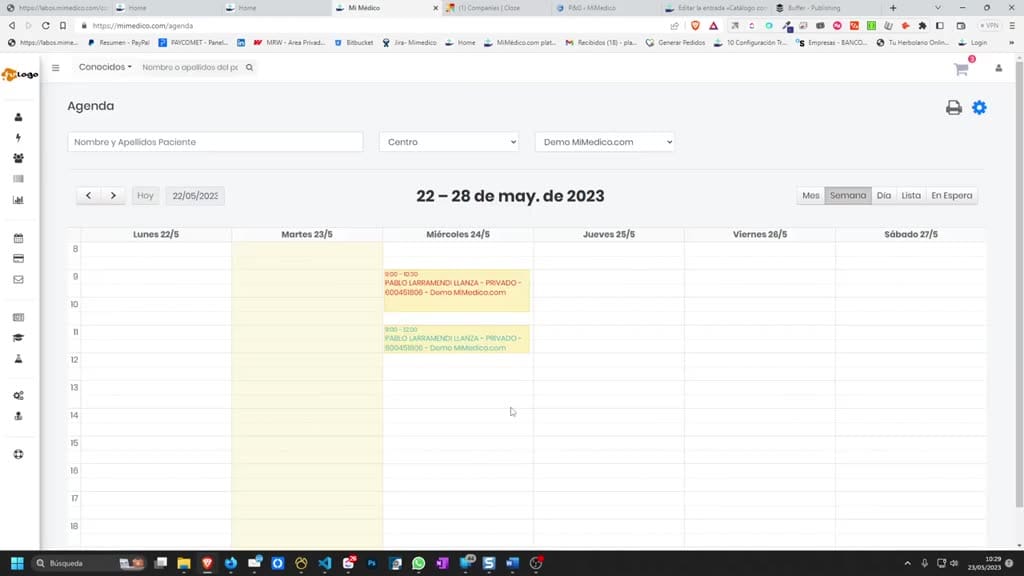
- and how to configure it. If we go to the configure it. If we go to the calendar section, we'll see that it's calendar section, we'll see that it's configured to automatically schedule appointments
4. Paso 4
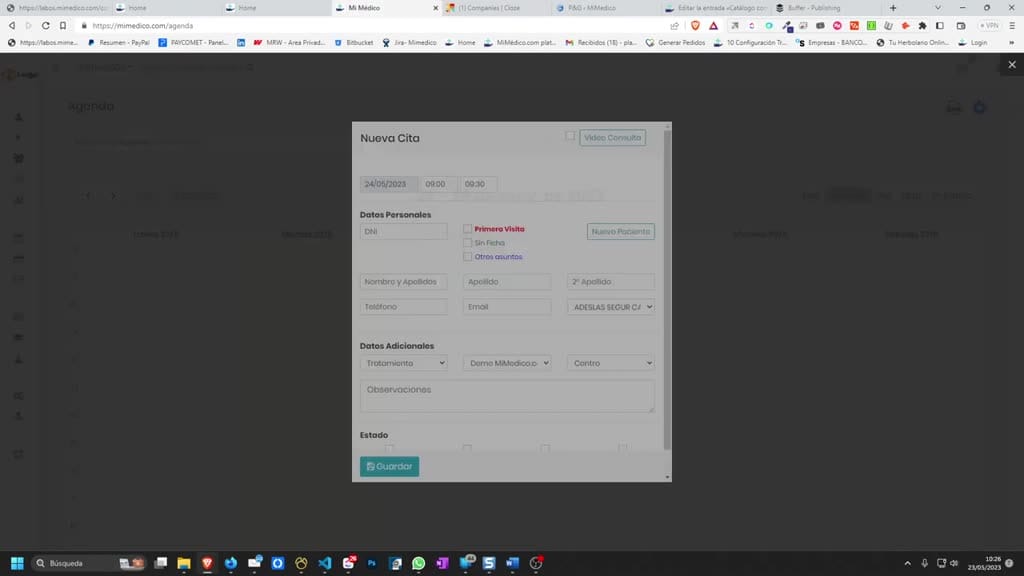
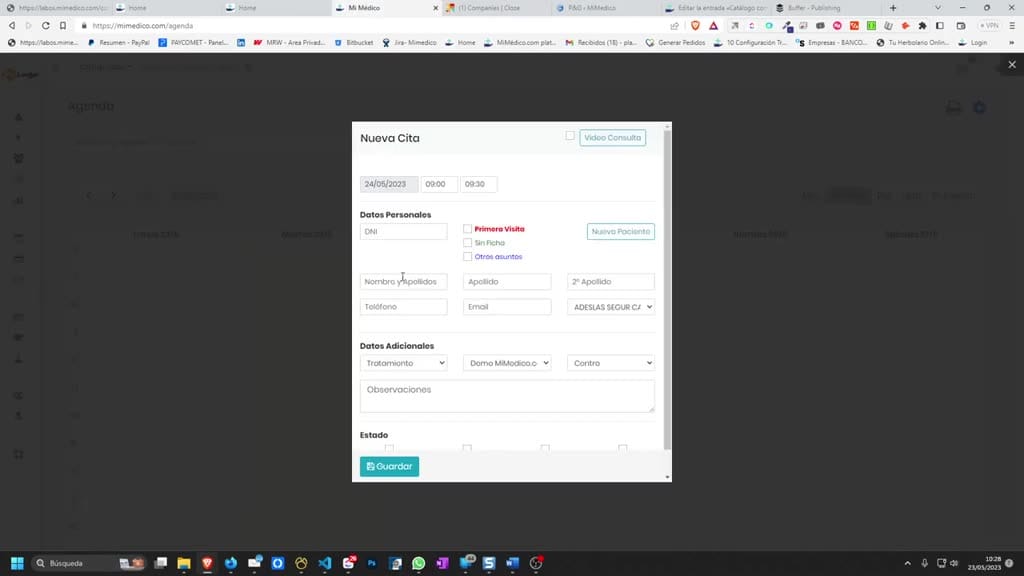
- configured to automatically schedule appointments every half hour. That is, if every half hour. That is, if I click to make a new I click to make a new appointment, it will automatically select a time slot from 9:00 to
5. Paso 5
- appointment, it will automatically select a time slot from 9:00 to 9:30, a half-hour window. 9:30, a half-hour window. Okay, how can we Okay, how can we modify this so that, depending on the reason
6. Paso 6
- modify this so that, depending on the reason for the visit, it selects a for the visit, it selects a different duration? What we're going to do is go to different duration? What we're going to do is go to settings, then to the reason for the visit. Here, we've
7. Paso 7
- settings, then to the reason for the visit. Here, we've created a reason for a visit called "First a reason for a visit called "First Visit." If I click on it, I've Visit." If I click on it, I've named it "First Visit" without adding
8. Paso 8
- named it "First Visit" without adding a description, and I've set its a description, and I've set its duration to 90 duration to 90 minutes and the text color to minutes and the text color to red. I'm going to
9. Paso 9
- red. I'm going to update it. Okay, I've also created one update it. Okay, I've also created one called "Follow- up Visit," which lasts 45 minutes. Okay, let's say, I don't know, 60 Okay, let's say, I don't know, 60 minutes. Okay, and I want the
10. Paso 10
- minutes. Okay, and I want the appointment text to be this color. I click save, appointment text to be this color. I click save, and the same thing happens. Okay, I could also and the same thing happens. Okay, I could also remind you how to create a new reason
Preguntas frecuentes para soporte
¿Qué explica el tutorial Duración cita según el motivo de visita en Mimedico.com?
Good morning, welcome to a new tutorial from midodico.com. My name is tutorial from midodico.com. My name is Pablo Larramendi, and you can contact me Pablo Larramendi, and you can contact me by phone or email if you have by phone or email if you have any questions. Today, we're going to any questions. Today, we're going to look at the duration of visits in the appointment calendar look at the duration of visits in the appointment calendar and how to and how to configure it. If we go to the configure it. If we go to the calendar section, we'll see that it's calendar section, we'll see that it's configured to automatically schedule appointments configured to automatically schedule appointments every half hour. That is, if every half hour. That is, if I click to make a new I click to make a new appointment, it will automatically select a time slot from 9:00 to appointment, it will automatically select a time slot from 9:00 to 9:30, a half-hour window. 9:30, a half-hour window.
¿Dónde está el material fuente del tutorial?
El paquete local está en /mnt/d/Claude/claude-config/trabajos/MiMedico/Tutoriales/Duración cita según el motivo de visita en Mimedico.com y el vídeo fuente es https://www.youtube.com/watch?v=wyyzDoPl4nY.
¿Para qué se usa esta fuente en soporte?
Se usa para responder dudas operativas sobre la funcionalidad de MiMedico.com mostrada en el vídeo.
Fuente: vídeo tutorial MiMedico. Material generado automáticamente por Morfeo y sincronizado con la biblioteca Tutoriales MiMedico.com.